Speelka Agent
Universal LLM agent based on the Model Context Protocol (MCP)
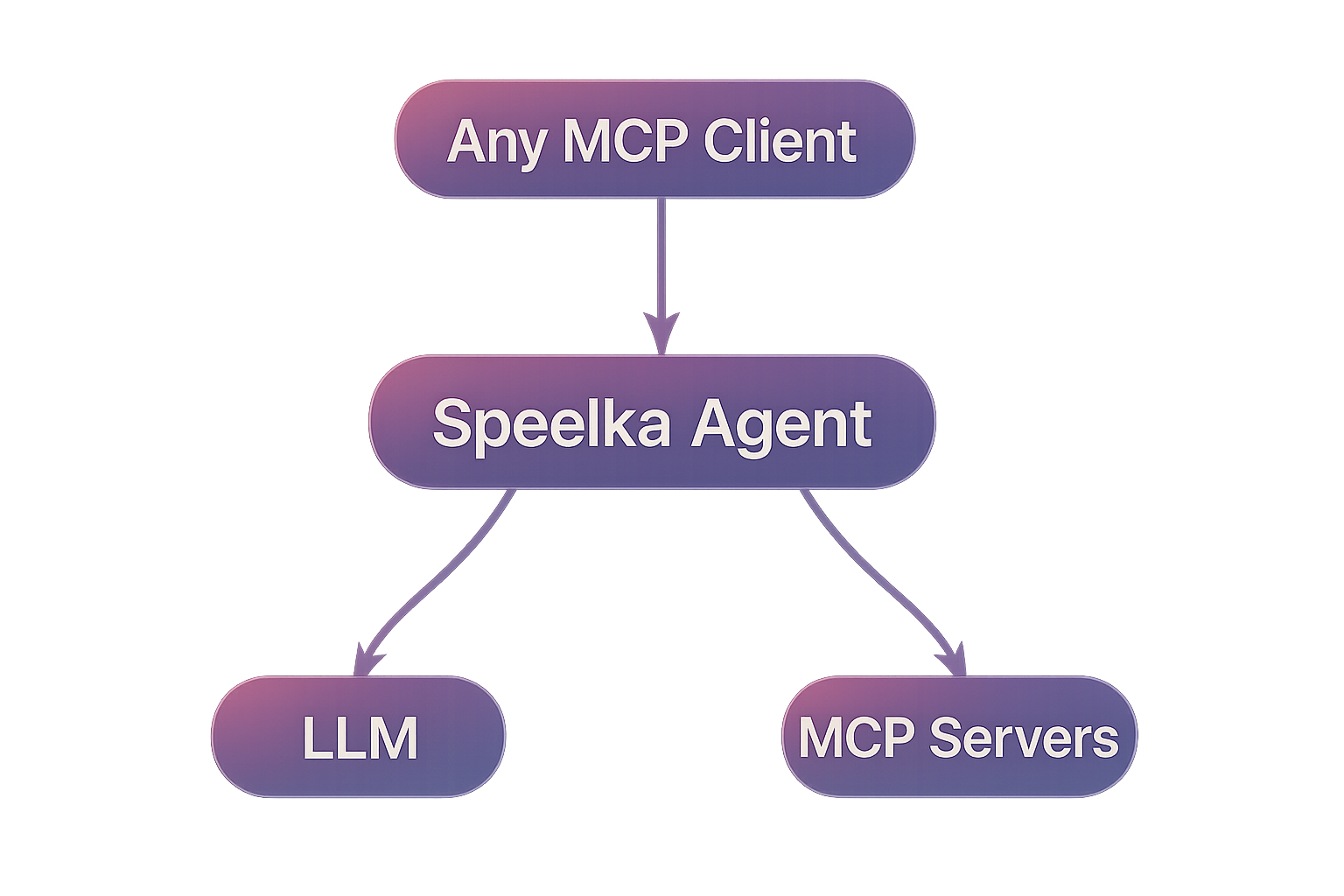
Universal LLM agent based on the Model Context Protocol (MCP), with the ability to utilize tools from other MCP servers.
Universal LLM agent based on the Model Context Protocol (MCP), with the ability to utilize tools from other MCP servers.
Splitting large, complex instructions into specialized, focused tasks to improve response accuracy.
Using different models to handle different parts of a task, reducing overall operational costs.
Extending, narrowing down, or modifying the structure of third-party MCP server responses.
Easily switch between real and LLM-based implementations of a given tool.
Restrict the list of available tools in an MCP server to constrain system capabilities.
Orchestrate multi-step workflows across multiple MCP tools within a single agent session.
Enforce per-request token and cost budgets to ensure predictable usage.
Automatic retry and exponential backoff handling for transient LLM or MCP server errors.
Seamlessly switch between different LLM services (e.g., OpenAI, Anthropic) with unified configuration.
%%{
  init: {
    'theme': 'dark',
    'themeVariables': {
      'primaryColor': '#8a5cf6',
      'primaryTextColor': '#f9fafb',
      'primaryBorderColor': '#8a5cf6',
      'lineColor': '#8a5cf6',
      'secondaryColor': '#6d28d9',
      'tertiaryColor': '#131525',
      'edgeLabelBackground': '#131525'
    }
  }
}%%
flowchart TB
    User["Any MCP Client"] --> |"1. Request"| Agent["Speelka Agent"]
    Agent --> |"2. Format prompt"| LLM["LLM Service"]
    LLM --> |"3. Tool calls"| Agent
    Agent --> |"4. Execute tools"| Tools["External MCP Tools"]
    Tools --> |"5. Return results"| Agent
    Agent --> |"6. Process repeat"| LLM
    Agent --> |"7. Final answer"| User

    classDef default fill:#131525,stroke:#8a5cf6,stroke-width:2px,color:#f9fafb;
Follow this simple step-by-step guide to set up your agent
For security and better management, it's recommended to create a dedicated API key for your LLM provider:
Create a new API key from your LLM provider and set it as an environment variable:
export SPL_LLM_API_KEY=your_llm_api_key_hereYou can get an API key from OpenAI's website or your preferred LLM provider.
First, decide what type of agent you want to create based on your needs:
Create a file named config.yaml with the following content, depending on your chosen agent:
To interact with your Speelka Agent, you'll need an MCP-compatible client.
Check out the Claude Desktop setup guide for installation instructions.
Configure Claude Desktop to use your Speelka Agent by editing the claude_desktop_config.json file:
{
  "mcpServers": {
    "speelka": {
      "command": "./speelka-agent",
      "args": ["--config", "config.yaml"],
      "env": {
        "SPL_LLM_API_KEY": "your_llm_api_key_here"
      }
    }
  }
}